

If you’re looking to take your FiveM server to the next level and immerse your players in a world that’s more than just a typical GTA V experience, adding Fivem MLO (Map Location Objects) is a game-changer. Whether you’re creating a FiveM business MLO to enhance the in-game stores or setting up a FiveM gang MLO for an underground hideout, these custom maps can make all the difference. In this guide, we’ll walk you through how to install FiveM MLOs and transform your server into a truly unique place to play.
What Is a FiveM MLO?
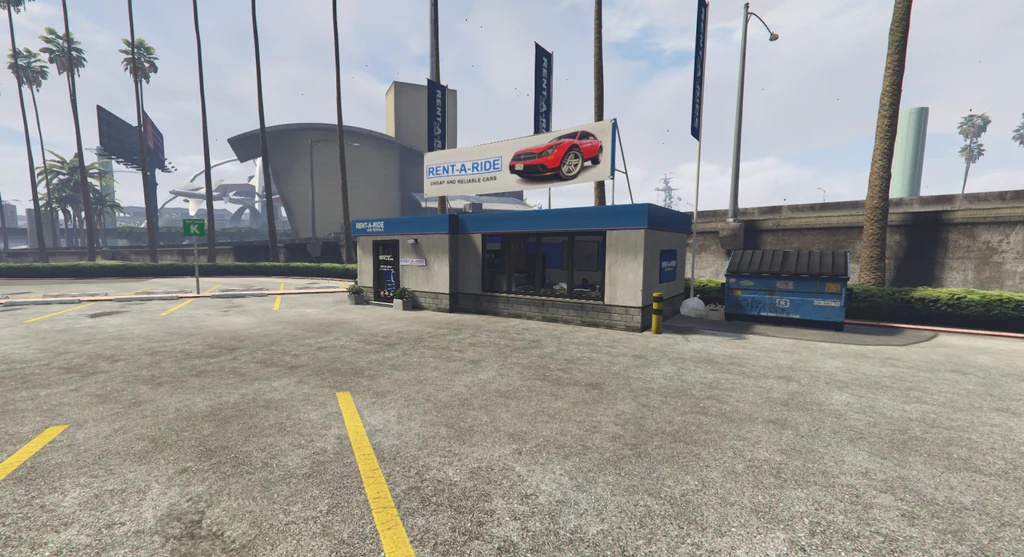
Before getting into the detail of the installation procedure, we first have a glance of what an MLO really is. A FiveM MLO is basically a made to order 3D map or structure that can be put into your server. Imagine it as a new place on the game, be it a store, a secret hideout or a business office building. Installing these MLOs on the place of the regular GTA V objects does give your server a completely different vibe and feel.
An example of this is that a FiveM shop MLO has the potential to transform a regular in-game store entirely, making it appear more like a custom-made one that matches the theme of your server. On the same note, you may have a FiveM gang MLO who would develop a gritty, realistic environment that would be played on by your roleplay server.
Why Should You Install Realistic Maps?
You might be wondering, why go through the effort of installing these custom maps? Well, here are a few reasons why it’s totally worth it:
-
Immersive Gameplay: Realistic MLOs make your world feel more alive and engaging. Players won’t just walk around a generic GTA V map they’ll be entering unique, carefully designed spaces that enhance roleplaying.
-
Increased Player Interaction: When you offer custom spaces like a FiveM business MLO or a FiveM gang MLO, it gives players more places to interact, explore, and create memories.
-
Better Aesthetics: Let’s face it – the default maps in GTA V can get a bit repetitive. Adding new MLOs improves your server’s look, making it feel fresh and exciting for both new and returning players.
Now that we’ve covered the basics, let’s get into the good stuff: installing these MLOs!
Step-by-Step Guide to Installing FiveM MLO for Realistic Maps
Ready to add some custom flair to your server? Here’s how you can get started with installing FiveM MLOs.
Step 1: Pick the Right MLO for Your Server
The first thing you need to do is choose the FiveM MLO that fits your server. Whether you need a FiveM shop MLO or a FiveM gang MLO, make sure it complements the overall theme of your server.
-
Where to Find MLOs: You can explore popular FiveM modding sites like FiveM Store or other trusted modding communities. Just make sure to check reviews and confirm that the MLO works with the latest FiveM updates.
-
Look for Special Features: Some MLOs come with extra features or scripts, like interior lights or interactable elements. Be sure to select one that aligns with what you need for your server.
Step 2: Download the MLO Files
Once you’ve picked the perfect FiveM MLO, download the files to your computer. Most of the time, these files come in a ZIP format, so you’ll need to extract them first.
Step 3: Access Your Server’s Resources Folder
To install the MLO, you need to find the resources folder on your FiveM server. This is where all your server’s custom content, including MLOs, gets stored.
-
How to Find It: In your server’s main directory, there should be a folder called resources. Open this folder to begin adding your MLO.
If you’re not sure where to find it, here’s a quick rundown:
-
Open your FiveM server folder.
-
Find the resources folder inside your server’s root directory.
Step 4: Move the MLO Files to Your Resources Folder
Now that you’ve extracted your FiveM MLO files, it’s time to add them to the server.
-
Copy the MLO Folder: Copy all the MLO files from the extracted folder (usually consisting of files like .ydr, .yft, and .ytd).
-
Paste in Resources: Paste these files into your server’s resources folder.
This step makes the MLO accessible to your server.
Step 5: Modify the server.cfg File
In order to actually load the MLO in your game, you’ll need to reference it in the server.cfg file.
-
Open the server.cfg file: You’ll find this in the root directory of your FiveM server.
-
Add the MLO Start Command: To load the MLO, you need to add a line to start it. It should look something like this:
Step 6: Test the MLO in the Game
With everything set up, it’s time to fire up your server and test the MLO.
-
Log into Your Server: Once your server is running, log in and check out the new MLO in action.
-
Look for Issues: If something isn’t working as expected, check the console for errors. Sometimes, you may need additional dependencies or scripts.
Tips for a Smooth MLO Installation
Here are a few tips to ensure your FiveM MLO installation goes smoothly:
-
Compatibility Check: Before downloading, verify that the MLO is compatible with your version of FiveM. Some MLOs may only work with specific updates.
-
Server Performance: Custom MLOs can be resource-intensive, so always test your server’s performance with the new MLO to ensure it doesn’t cause lag or crashes.
-
Backup Your Server: It’s always a good idea to back up your server files before adding anything new. This way, if something goes wrong, you can restore your server to its previous state.
Troubleshooting MLO Installation Issues
If you run into any problems while installing FiveM MLOs, here are a few common issues and solutions:
-
MLO Not Showing Up: Double-check that you’ve added the correct folder name in the server.cfg file and that all necessary files are in place.
-
Server Crashing: If your server crashes after installing the MLO, remove it temporarily to see if it’s the cause. You may need to download a newer version or remove conflicting mods.f
-
Performance Drops: Some MLOs can impact server performance, especially those with high-res textures. Consider using lower-quality versions or testing with a smaller group of players first.
Conclusion: Enhance Your Server with Realistic MLOs
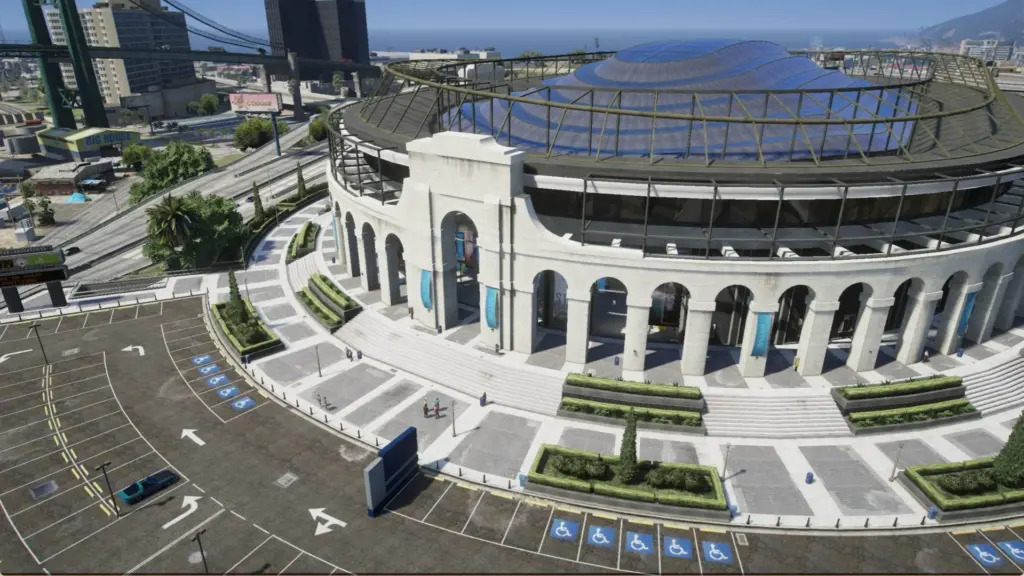
Adding FiveM MLOs to your server can completely transform the way players interact with your game world. Whether it’s a FiveM business MLO to upgrade your in-game stores or a FiveM gang MLO to create a secret hideout, these custom maps bring your server to life.
By following the steps in this guide, you’ll be able to easily install MLOs and make your server more immersive for everyone. If you’re looking for high-quality FiveM MLOs to get started, check out FiveM Store for a variety of options.
For more updates and details, visit our Pinterest Profile!
FAQs About Installing FiveM MLOs
1. What’s the difference between a FiveM MLO and regular GTA V mods?
FiveM MLOs are custom-built map objects, like shops or buildings, specifically for FiveM servers. They replace or add to the existing GTA V world, enhancing your server with unique locations. Regular mods might change other game aspects, like vehicles or gameplay mechanics.
2. How do I install a FiveM business MLO?
The installation process is the same for any MLO. Simply download the MLO, extract the files, add them to your resources folder, and update your to start the MLO.
3. Can I use multiple MLOs on my server?
Yes, you can install as many MLOs as your server can handle. Just make sure they don’t conflict with each other and test performance with a few players before going live.

